Using the Device
Frank's Flight Radar has three inputs: the rotary encoder (twist and press), and the touchscreen. Here's what each does on the main radar screen.
The radar display
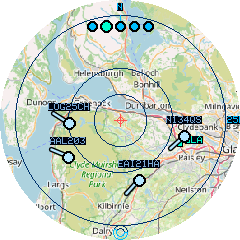
- The red crosshair at the centre is your home location.
- The background is one of three styles, set under Settings → Map: a real street map, an offline lo-fi vector map, or a plain scope. See Settings Reference and Map & Caching.
- Concentric rings mark 25%, 50%, and 100% of the current zoom radius, with an N tick at the top and range labels on the right (toggle these off under Settings → Range rings).
- At the widest zooms there can be more aircraft in range than the device holds. It keeps the nearest ones, so what drops off is always the far horizon rather than something overhead.
- Aircraft are drawn as dots with a short heading line, coloured by state:
- White (or your theme's aircraft colour) — normal, airborne
- Grey — on the ground
- Orange — currently selected (tapped)
- Red, with an extra ring — squawking an emergency code (7500/7600/7700); see Emergency Alerts
- Aircraft glide smoothly between refreshes rather than jumping — their positions are dead-reckoned from heading and speed, so motion looks continuous even between polls.
- A small battery gauge appears at the top right on hardware that reports battery state: an outline that fills in proportion to charge, turning amber below 30% and red below 10%, with a bolt through it while charging. The M5Dial does not expose battery voltage to its processor, so nothing is shown there — see Building From Source for the measurements behind that.
- A small poll sweep sits near the bottom of the screen: a segment travels continuously round a dim ring. It's driven by the clock, not the refresh schedule, so it keeps turning steadily whatever the network is doing — a sweep that has stopped means the device itself is stuck, which is the thing actually worth noticing. Its colour tells you the feed's health: normal when idle, bright while a request is in flight, and red if the last request failed. Turn it off under Settings → Poll sweep.
Rotary encoder: zoom
Rotate the dial to change the radar range. There are six steps: 10, 25, 50, 100, 200, and 400 km. Each click moves exactly one step, and steps register immediately. This hardware's encoder emits occasional spurious single ticks, so the firmware only commits a step once the count has moved a full detent — sub-detent noise is rejected outright rather than waited out, which keeps the dial responsive.
The rings, scale and map redraw instantly. Fetching fresh traffic for the new radius is deferred briefly, so spinning through several levels makes one request rather than one per level — and because fetches run off the UI thread, none of it delays the dial.
Touch: select an aircraft
Tap an aircraft's dot to select it and open its detail panel — a pill showing three pages of information. Tap the pill itself (not the dot) to step to the next page; a small arrow on the pill's edge points the way it'll flip, and flips to point back once you're on the last page. Tap the aircraft's dot again (or tap elsewhere on screen) to dismiss the panel.
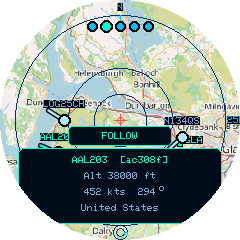
- Page 1 — Summary: callsign and ICAO24 hex address, altitude, speed and heading, and the aircraft's type code (e.g. "A320") with a GND flag when it's on the ground.
- Page 2 — Position: the aircraft's raw latitude/longitude, its squawk (transponder ID) code, and its distance from home plus how many seconds old that position report is.
- Page 3 — Identity: registration (tail number), full aircraft description (e.g. "Airbus A320-214"), and operator/airline. These come from airplanes.live's own aircraft database, not the plane's live broadcast, so they read "n/a" for aircraft it has no record of.
While an aircraft is selected, it also leaves a short trail of its recent positions (a fading breadcrumb line), and the rotary dial cycles the selection through the other visible aircraft instead of zooming. Trails share the Heading trails setting — turn that off to hide both the heading arrows and the trail.
Following an aircraft
To keep an aircraft centred as it flies, follow it:
- Tap the aircraft to select it and open its detail panel.
- Tap the FOLLOW button just above the panel.
The radar re-centres on that aircraft and tracks it: a reticle marks the tracked point, your home becomes a small offset marker (so you can still tell which way home is), and its altitude and speed are printed just below its mark. Other traffic drifts past as the aircraft moves.
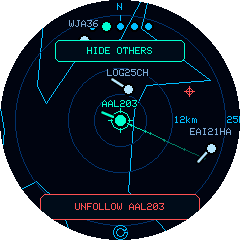
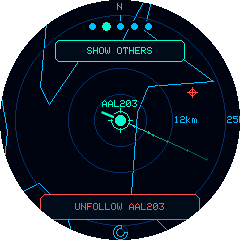
Following AAL203 — the HIDE OTHERS toggle is at the top, UNFOLLOW at the bottom. After tapping HIDE OTHERS (right), only the tracked aircraft remains.
- The rotary dial zooms while following (the selection is locked onto your target).
- HIDE OTHERS (top button) drops all the other traffic so only your target and the map remain; tap it again (SHOW OTHERS) to bring them back.
- Drag anywhere to pan the view around the tracked aircraft — useful when a button is covering something you want to see. While panned, a small reticle icon appears on the right edge as a reminder; a plain tap (no drag) snaps back to centred.
- If the aircraft stops being seen, a red NO SIGNAL notice appears with a counter showing how long it's been out of contact. The view keeps coasting along its last known heading meanwhile, so a still-looking mark reads as "dead reckoning" rather than a frozen device. Follow ends if it stays unseen for 20 minutes.
- With the Full map, the background re-centres lazily — it stays put while the aircraft drifts within view, then snaps to re-centre once it wanders far enough, briefly reloading the map there. On the Lo-fi or Off background this is instant with no reload, so following feels smoothest there.
- Follow is a locked mode — ordinary taps do not back out of it. It ends when you tap UNFOLLOW, or when the aircraft has not been seen for 20 minutes (it has landed, or left ADS-B coverage). Through shorter gaps the view keeps coasting along the aircraft's last known heading and re-acquires it when it reappears.
Touch: drag to go anywhere
Drag the radar to move the view — and keep going. There's no boundary: drag to the next county, across the Channel, or over the Atlantic, and the radar fetches whatever traffic is actually there. Latitude stops at the poles and longitude wraps, so you can circle the globe.
Two icons appear on the right edge while you're away from home:
| Icon | Does |
|---|---|
| Reticle | Snaps back to home |
| House | Makes the spot you're looking at your new home |
Your home crosshair stays visible wherever it falls on screen, so you can always see which way it is — and browsing never changes it until you tap the house.
Tapping still selects aircraft as normal; only a deliberate drag moves the view, so a slightly imprecise tap won't send you to Norway.
While browsing, the display uses the offline lo-fi map even if Map is set to Full, because fetching street tiles for every place you drag through would stall the device for seconds at a time.
Touch: check API status
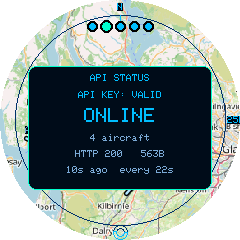
Tap the poll sweep (bottom of the screen), or choose Settings → API status, to open the API status panel — this shows whether the last request succeeded, the HTTP status code and response size, a short reason on failure, and how long ago it happened. Tap anywhere to dismiss it. This is the fastest way to check why aircraft aren't showing — see Troubleshooting.
Encoder button: settings & reset
- Short press (under 3 seconds): opens the Settings menu as a floating panel over the live radar. See Settings Reference for every option. Rotate to move the cursor, press to select/cycle a value, and tap anywhere on the screen to close the menu at any time (it also auto-closes after 30 seconds of inactivity).
- Hold for 3 seconds: triggers a factory reset — this wipes WiFi credentials, home location, and saved favourites, then reboots into first-boot setup. There's no confirmation for this physical-button combo (it's designed as a recovery mechanism when the device is otherwise unusable), so use it deliberately. The same action is also available as a hold-to-confirm menu item under Settings → Factory Reset, which is the safer route for everyday use.
Firmware updates
Connect the device to a computer by USB and open the Flash Firmware page in Chrome or Edge — it flashes straight from the browser, no PlatformIO or command line needed. See that page for details on why it's USB rather than wireless.