Setting Your Location
Frank's Flight Radar centres the radar on a home location you choose. There are several ways to set or change it — pick whichever suits you. All of them update the same home location, and it's saved to flash so it survives reboots.
In a hurry?
On first boot, just leave the location fields blank and the device will locate itself automatically. You can refine it any time with the methods below.
The easy ways (no coordinates needed)
Auto-detect from your network
The device can work out roughly where it is from its internet connection — no typing.
- On first boot: leave the location fields blank in the setup portal (see Getting Started).
- Any time later: Settings → Detect location.
Accuracy is city-level and can be thrown off by a VPN (it may place you at your ISP's hub). It's a great starting point; use one of the precise methods below if it lands you in the wrong town.
Search by place name
Type a place instead of coordinates. In the WiFi setup portal (first boot, or Settings → Location & API Keys), enter a name like Glasgow or Paris, France in the Place name field and save. The device geocodes it once it reconnects. A typed place always wins over the coordinate fields.
Pick it on the device map
Settings → Set location opens a full-screen map you drag with your finger — no phone, no typing.
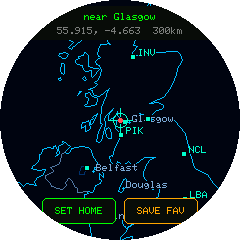
- Drag the map to move your spot under the centre crosshair.
- Twist the dial to zoom from country level down to about town level.
- The top readout shows the nearest city, your coordinates, and the zoom radius.
- Tap SET HOME to apply it (or SAVE FAV to store it as a favourite). The encoder button cancels.
The precise way: enter coordinates
For an exact home location — your actual house, an airport, a hilltop — enter latitude and longitude directly. The easiest place to look these up is Google Maps.
Getting coordinates from Google Maps
On a computer:
- Open Google Maps.
- Pan/zoom (or search) to the exact spot you want as your radar centre.
- Right-click that spot on the map.
- The very first item in the menu that appears is the coordinates, shown as
latitude, longitude(for example55.860916, -4.251433). Click it to copy both numbers to your clipboard.
On the Google Maps phone app:
- Press and hold the exact spot until a red pin drops.
- The coordinates appear in the search bar at the top (and in the place card at the bottom).
Either way you'll get two decimal numbers:
- The first is the latitude — positive north of the equator, negative south.
- The second is the longitude — positive east of Greenwich, negative west.
Minus signs matter
In the UK and the Americas the longitude is negative (e.g. Glasgow is -4.25). Don't drop the minus sign, or you'll end up on the wrong side of the planet.
Entering the coordinates
Open the setup portal — Settings → Location & API Keys (or the first-boot wizard) — and put the two numbers into Home latitude and Home longitude as decimal degrees (e.g. 55.860916 and -4.251433), then save. Leave the Place name field empty so your exact coordinates are used. See Getting Started for the full portal walkthrough.
Switching between saved locations
Store up to three spots as favourites (via SAVE FAV on the Set location screen, or the portal's favourite fields), then jump between them instantly under Settings → Saved Locations. See Favourite Locations.